Bought an eligible RYOBI HP tool and not sure how to claim your eGift Card? This guide walks you through every step, from registering your product to using your Bunnings eGift Card in store.
Before you start
Have these ready so registering takes just a few minutes:
- Your itemised Bunnings receipt or online order receipt. It must clearly show where you bought, the product and the date of purchase (between 2nd of November 2026 and 10th of January 2027).
- A My RYOBI account, you can create one myryobi.com.au here.
- Marketing opt-in ticked on your My RYOBI account. This is a condition of the offer and needs to be done before you submit your registration.
- A clear photo or scan of your receipt ready to upload.
- Access to the email address on your My RYOBI account. Every email about your eGift Card is sent there.
Step-by-step: from registration to Bunnings eGift Card
Note: The screens and emails shown are examples. Your name, product, amounts and dates will be different.
Register your product Within 30 days of purchase
Go to myryobi.com.au on your phone or computer, follow steps below or go through the Registration guide:- Log in to your My RYOBI account or create one if you don't have one yet.
- Make sure you have opted in to receive RYOBI marketing.
- Open the product registration page.
- Search for the product by entering the model number as it appears on your Bunnings receipt
- Upload a clear image of your receipt. Check the store, product name and purchase date are all readable. This will be checked at the step of approval eligibility.
- Select Submit.
Tip: If you purchased multiple products, register each eligible product separately. You can claim up to 5 bonuses, one per eligible purchase.
Check your confirmation
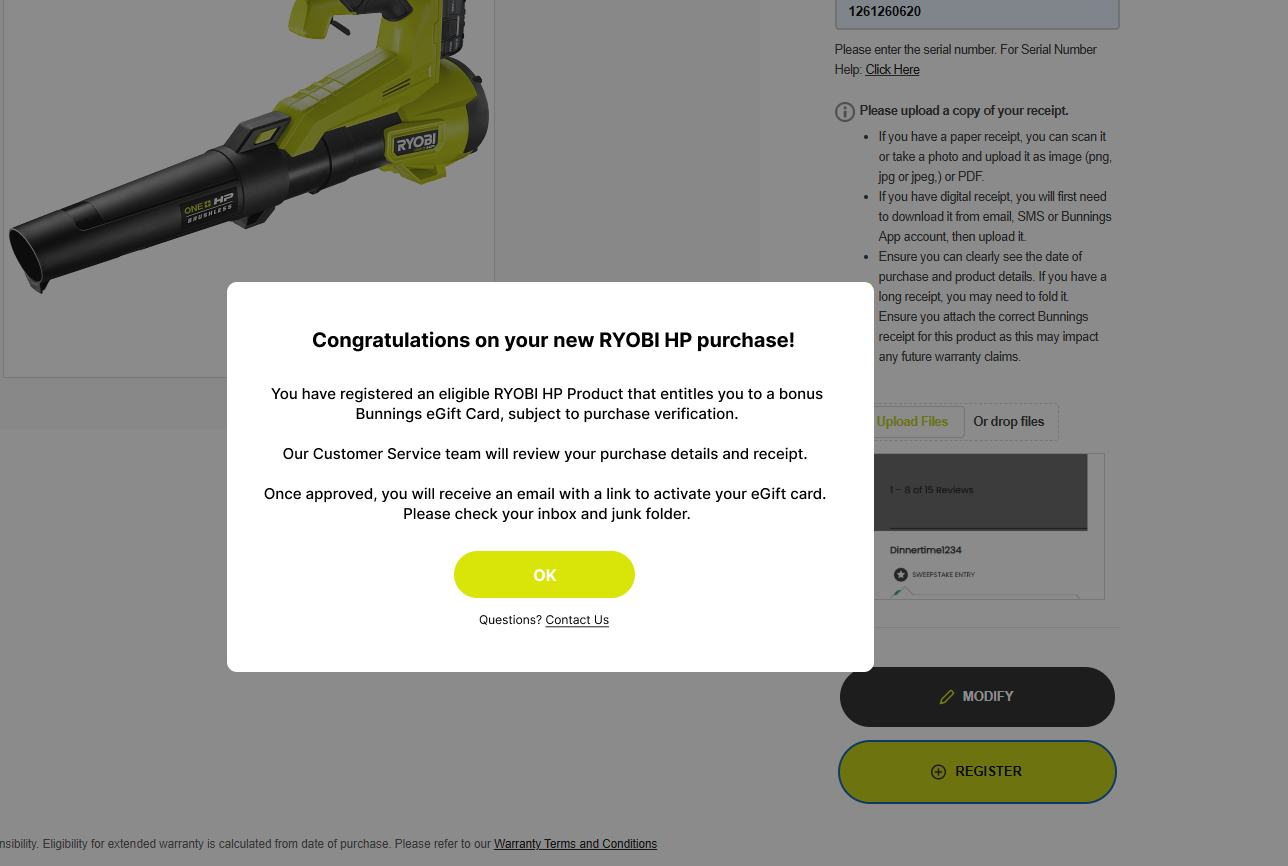
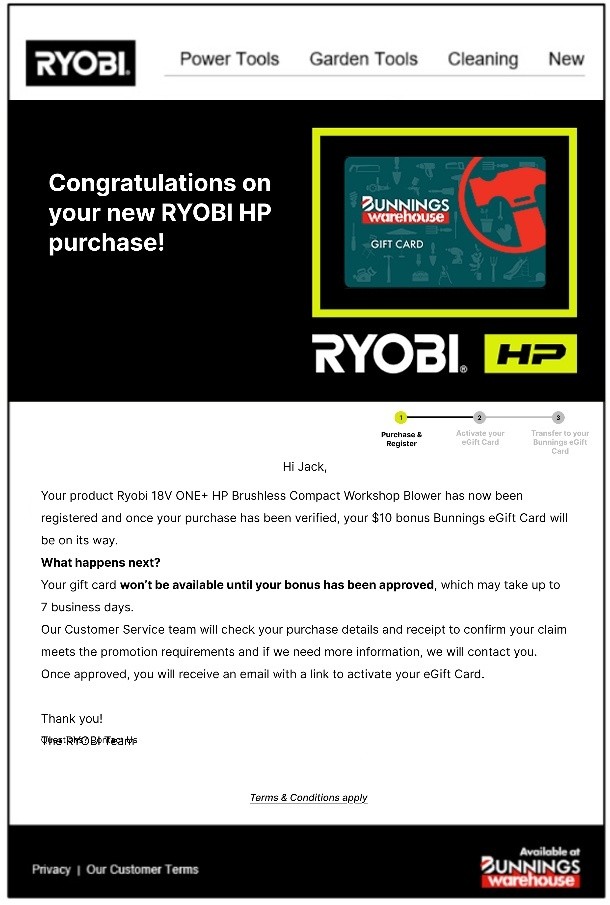
As soon as you submit registration, a pop-up appears saying “Congratulations on your new RYOBI HP purchase!” and you’ll receive an email confirming your bonus is under review. Select OK on the pop-up. There is nothing else to do yet.Can't see the email? Check your junk folder. If you don’t see the pop-up or the email at all, it may be because the product was purchased outside of promotional period, registered more than 30 days after purchase, or isn’t an eligible product.
Wait for your approval email Up to 7 business days
Our Customer Service team checks your receipt and registration details. Most claims are approved within 7 business days, and occasionally it can take up to 10 working days. If we need more information, we’ll contact you, so please reply as soon as you can.When your claim is approved, you’ll receive an email with the subject “Activate your gift card”.
Activate your eGift Card Within 30 days of receiving your approval email
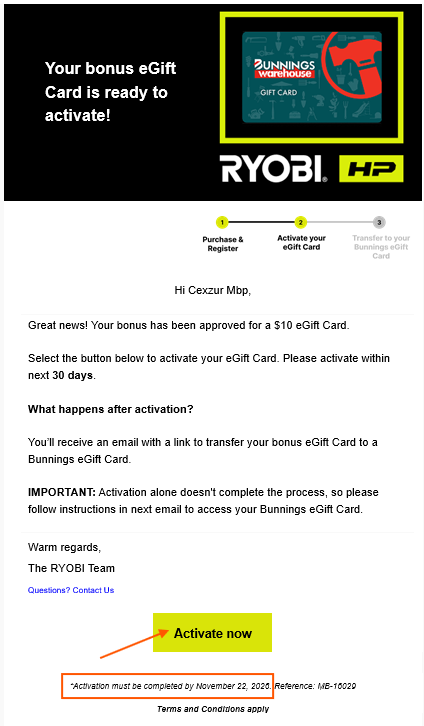
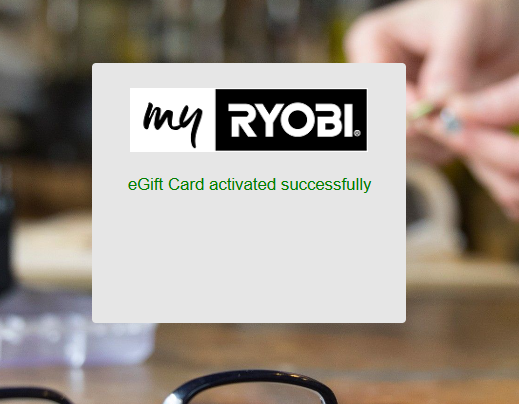
Open the approval email and select Activate now. A pop-up will confirm “eGift Card activated successfully”. The deadline is shown in the footer of the email.Important: activation alone doesn’t complete the process. Your next email has the final step.
Transfer your eGift Card to Bunnings Within 6 months of activating
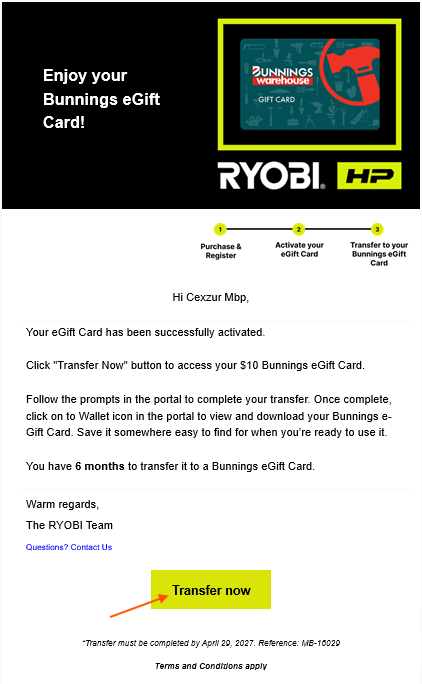
Shortly after activating, you’ll receive an email with the subject “Here's your gift card details”. Select Transfer now to open the Switch It portal, a secure gift card portal run by our partner Blackhawk Network. The transfer deadline is shown in the email footer and on the portal.Then follow the steps below.
In the Switch Portal
A. Select Bunnings Warehouse
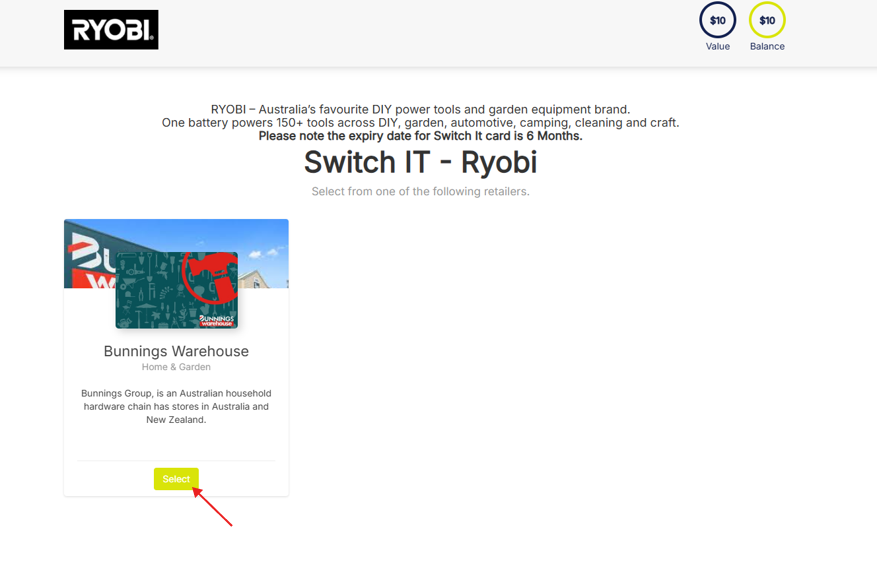
On the “Switch It – Ryobi” page, find the Bunnings Warehouse tile and click “Select” button.
B. Confirm the amount
A pop-up shows “You have selected Bunnings Warehouse for the value of $…”. Check the amount is correct, then select Confirm. By selecting Confirm, you agree to the terms and conditions.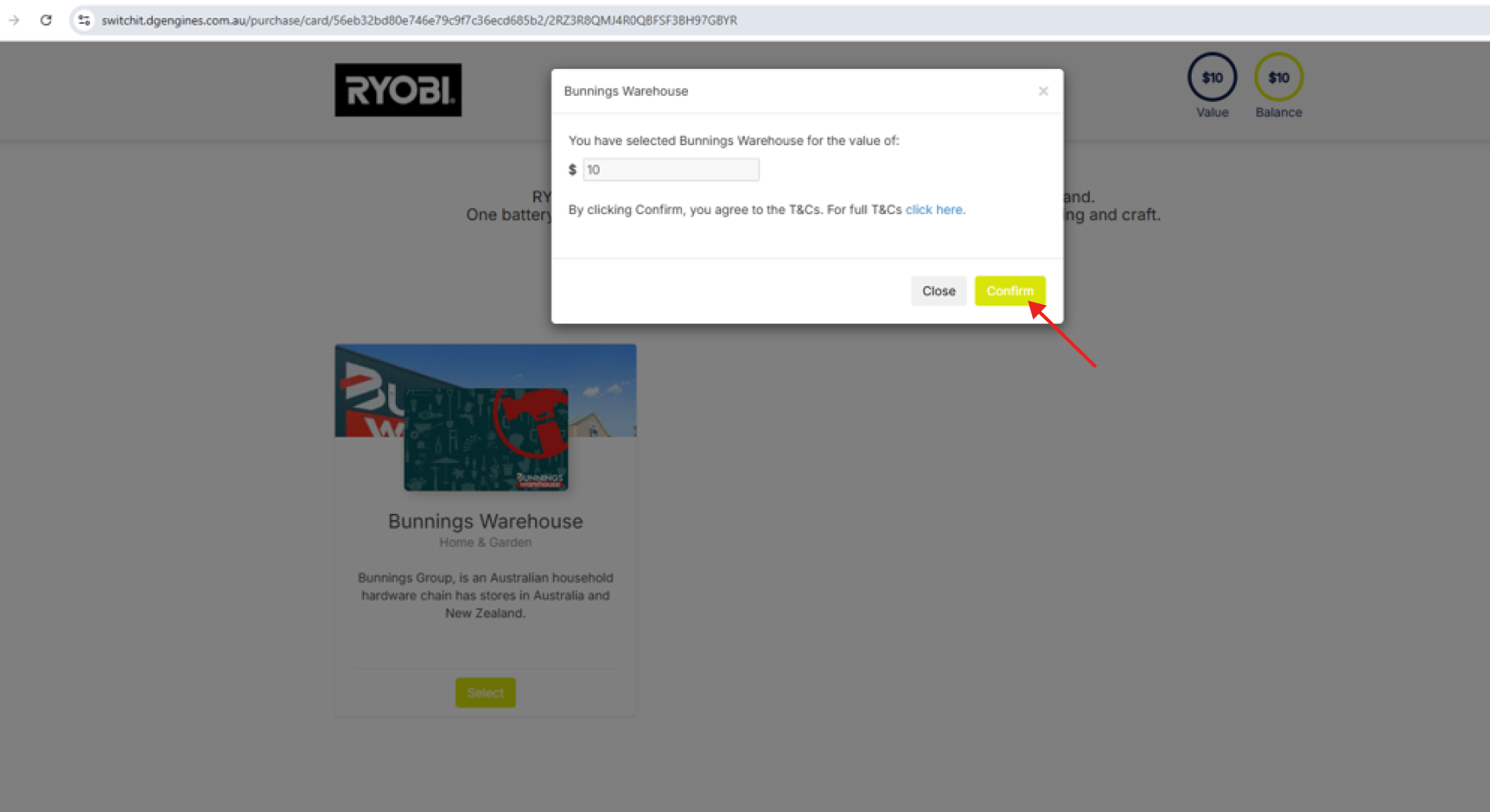
C. Look for the green success message
A green banner says “Success! Please check the Redemption History to access your eGift Card.”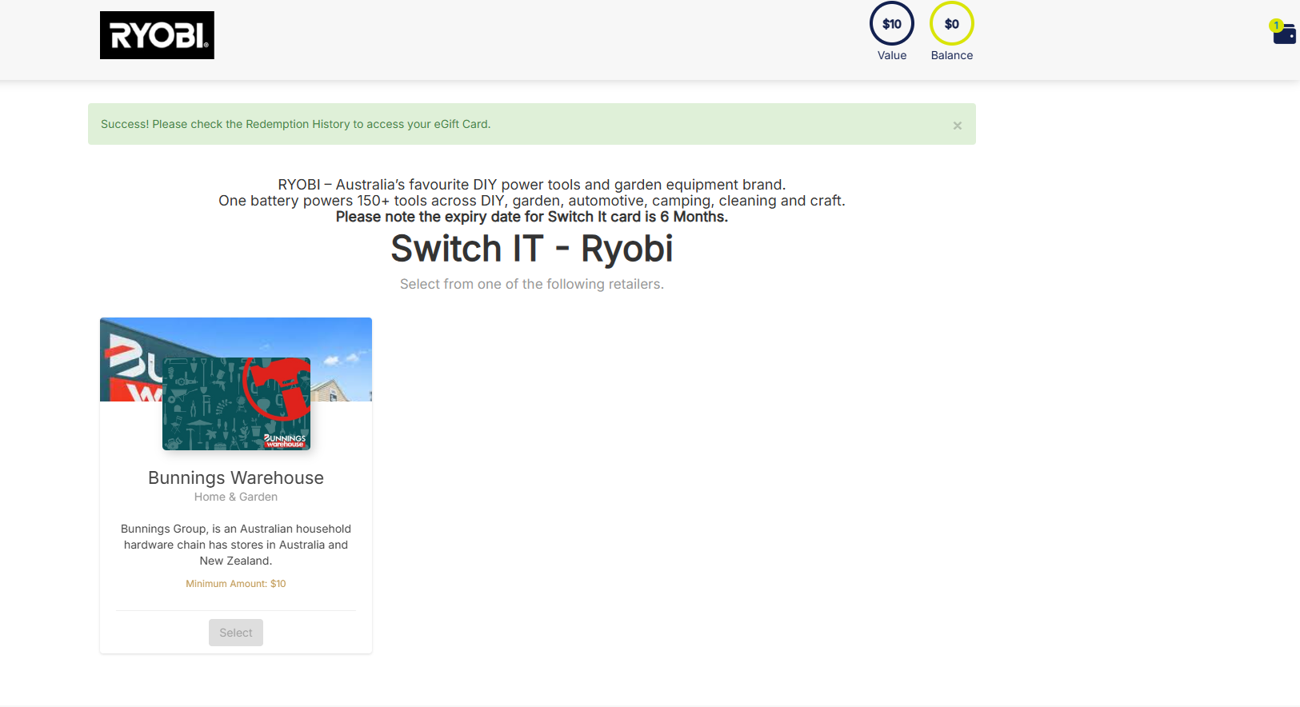
D. Open your Redemption History
Select the wallet icon in the top right corner. The Redemption History panel lists your Bunnings eGift Card. Select the eye icon next to it to open your card.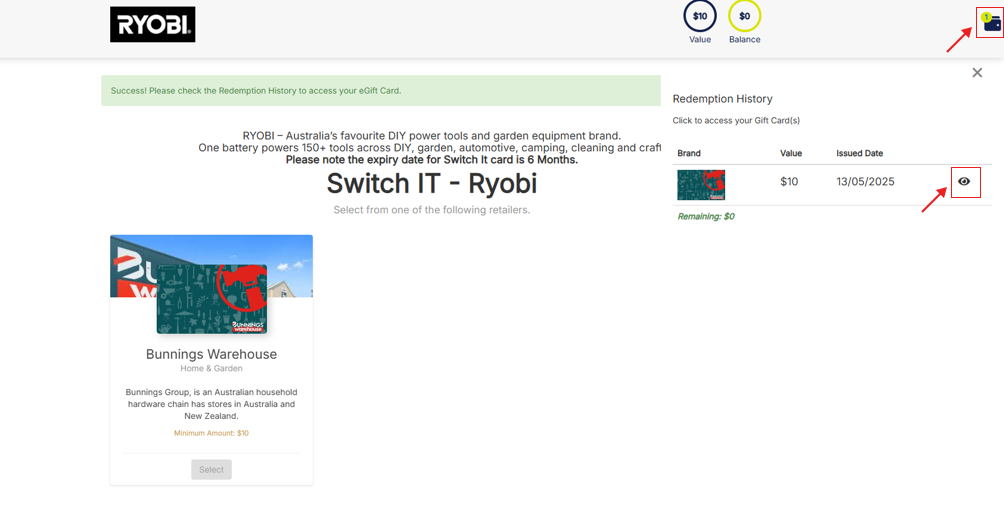
E. View or download
Choose View to display your card on screen so it can be scanned at the register, or Download to save a PDF (you’ll need a PDF reader).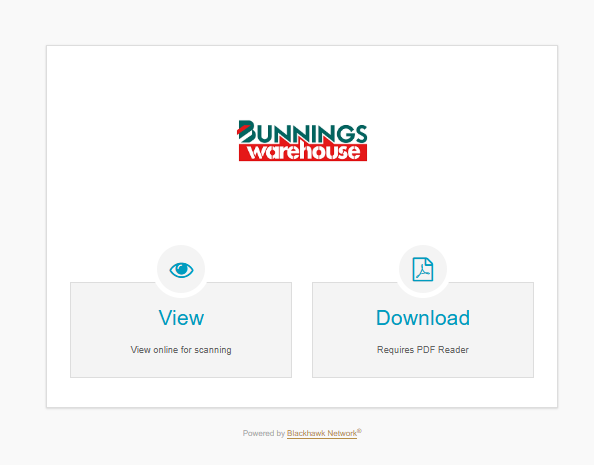
F. Save your card
Your card shows the amount, receipt number and purchase date, with the note “Print & Take to any Bunnings store in Australia”. Save a copy or take a screenshot so it’s easy to find later.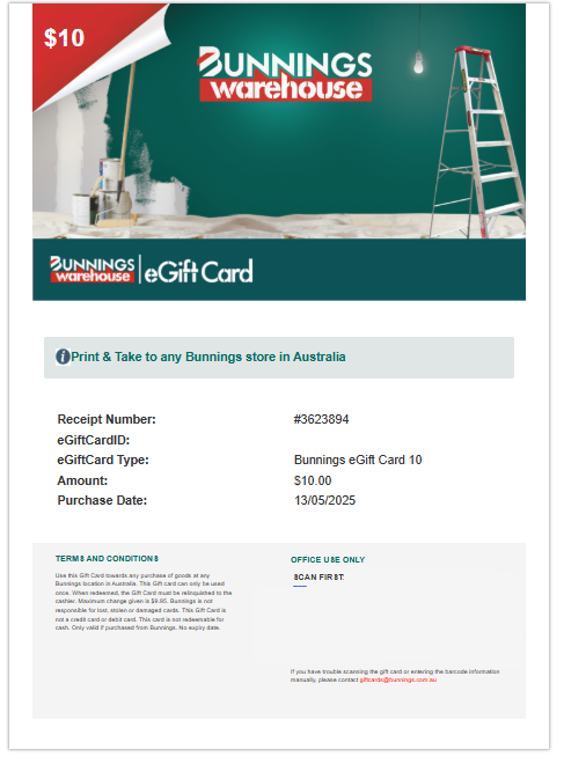
Spend it at Bunnings
- Show the View page on your phone, or print your downloaded PDF. A printed copy needs to be readable.
- Use it at any Bunnings store in Australia only.
- Keep your card details safe and treat it like cash.
Once your Bunnings eGift Card is issued, it is managed under the Bunnings eGift Card terms (bunnings.com.au/terms-conditions/online-gift-cards).
Can’t find your card later?
You can return to your card any time through the link in your transfer email, or in My RYOBI > Other > My Incentives.
Still need help?
Call us 1300 697 962 or fill in the form via Contact Us link. Please have your reference number handy (it starts with MB- and is in the footer of your activation and transfer emails).
Eligible RYOBI 18V ONE+ HP Power Tools or Kits, and 36V HP Garden Tools or Kits